

Project Setup & Search Settings
Configure project details, queries, and search settings to turn your idea into a robust listening project.



Configure project details, queries, search settings, and report branding for a saved listening project.
Once you create a project, Search Settings lets you refine the saved search, update project metadata, manage official accounts, and set report branding.
Project Details
These fields help you and your team understand what the project is for.
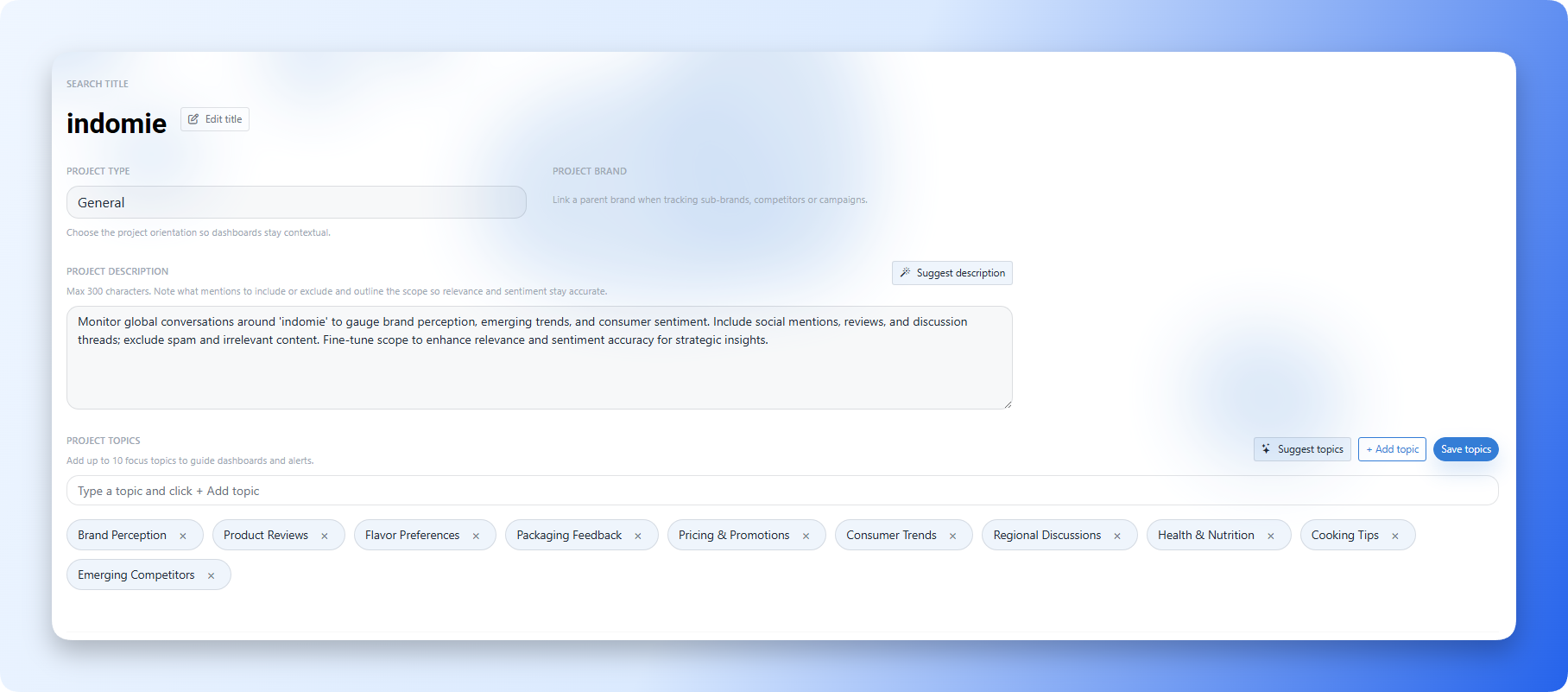
Project Title
Use a clear, descriptive title.
Examples:
Brand - Kommon Poll - GlobalCampaign - Q4 LaunchCompetitor - EV Market - Brand X vs Brand Y
Project Type
Select the type that best matches your goal, such as:
- General
- My Brand
- Sub Brand
- Competitors
- Campaign
- Industry
Project Description
Describe what the project tracks, why it exists, and who will use it.
Use Suggest description where available if you want Kommon Poll to draft a starting description from the search context. Review and edit the suggestion before saving.
Topics
Topics guide dashboards, filters, and reporting. Add topics for themes such as complaints, competitors, campaigns, product lines, or regional issues.
The current save flow supports adding up to 10 focus topics. Use Suggest topics where available to generate a first set, then remove generic topics and keep the ones that will help filtering, alerts, and reporting.
Team And Owner
Choose the correct team and owner or team member where those controls are shown. This affects who can access the saved search, which quota context is used, and where the search appears in team saved searches.
Query Builder
The query defines what Kommon Poll should listen to.
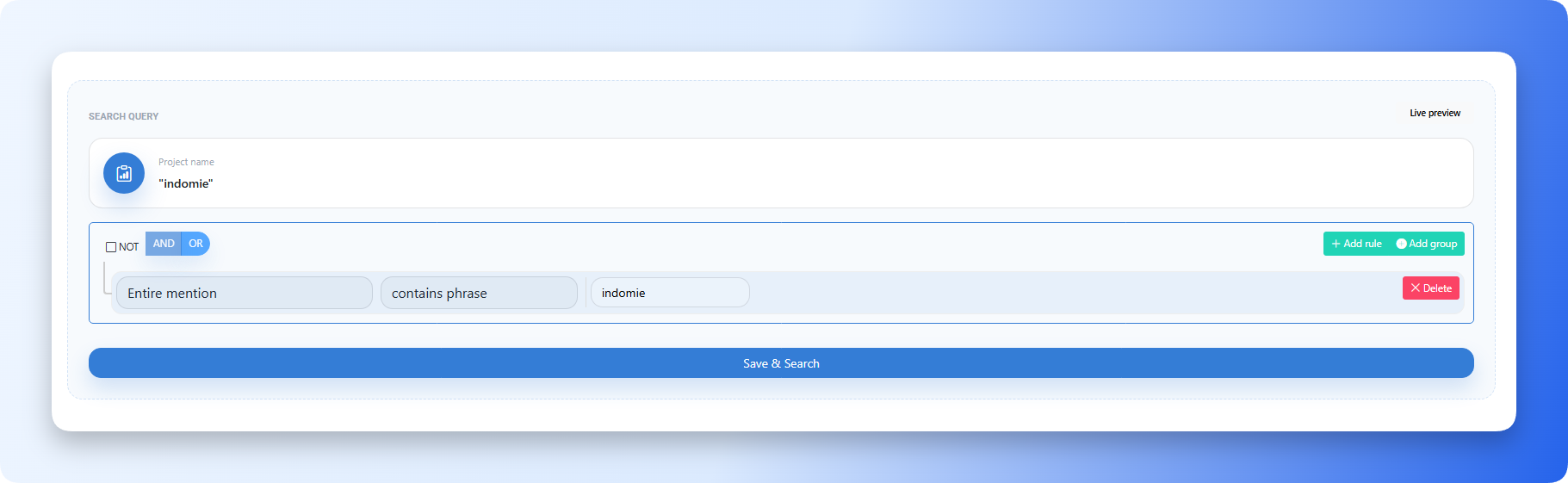
You can use:
- AI Boolean Builder
- Manual query builder
For most projects:
- Include brand names, product names, campaign names, hashtags, and competitor names.
- Add exclusions for obvious noise.
- Use filters for platform, country, language, sentiment, domains, authors, and mention types where available.
- Test and refine the query during the first days of monitoring.
Search Settings
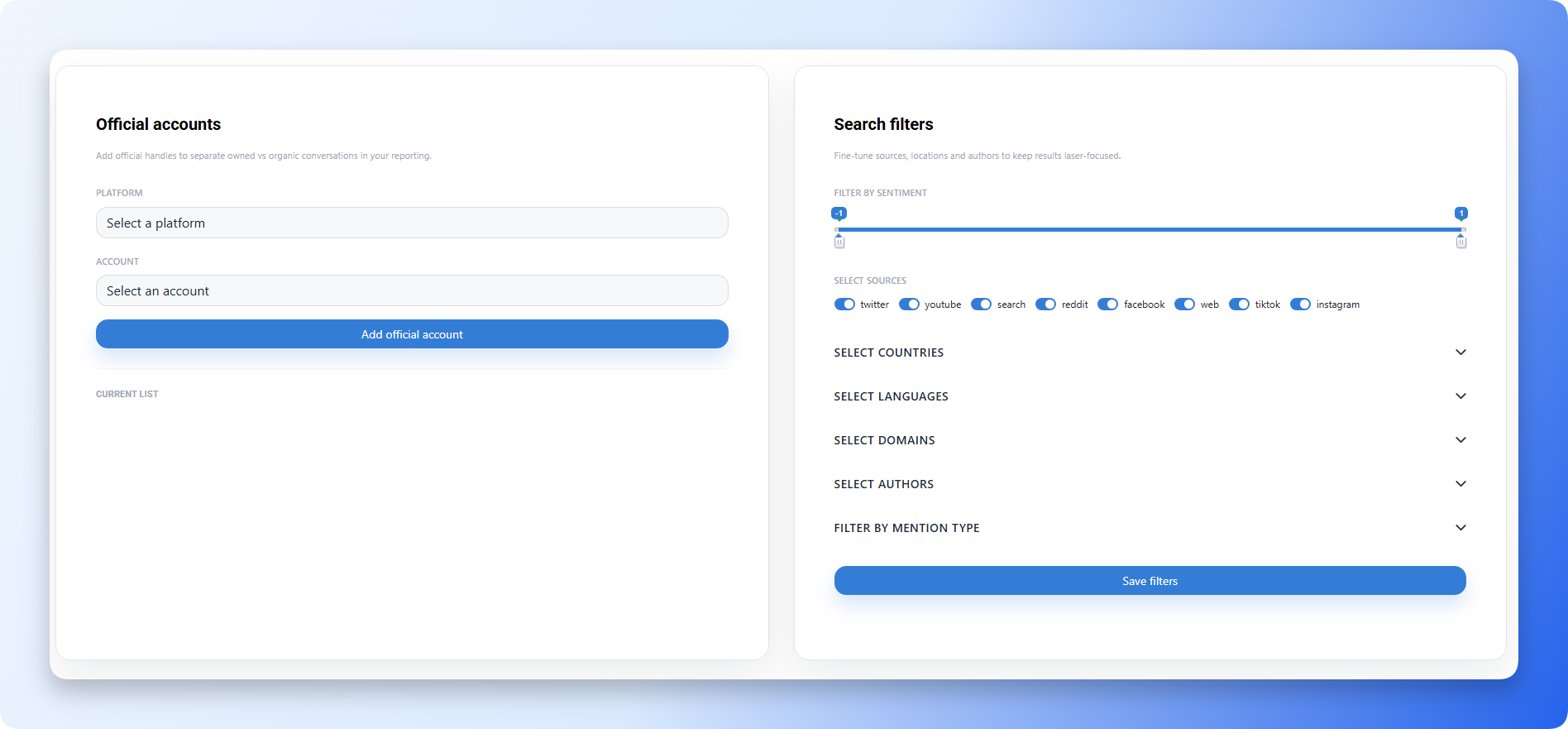
The Search Settings card pairs official account tracking with filters and project metadata.
Use it to:
- Update the query.
- Edit title and description.
- Manage project type and topics.
- Add owned or official accounts.
- Adjust filters such as sentiment, sources, countries, languages, domains, authors, and mention types.
Report Branding
Report branding is now separate from reusable PDF and slide formats.
Use the saved search's Report branding panel to set:
- Logo
- Accent color
This branding applies when that saved search is exported.
Reusable report structures are managed separately:
- Sidebar -> Settings -> Report Settings -> PDF Formats
- Sidebar -> Settings -> Report Settings -> Slide Formats
Monitoring Settings
If the project depends on owned social pages, groups, hashtags, or review listings, configure them in:
- Sidebar -> Settings -> Monitoring -> Social Tracking
- Sidebar -> Settings -> Monitoring -> Social Linking
Social Tracking handles source URLs, IDs, hashtags, manual tracking, and requests. Social Linking handles official account authorization.
Project Setup Checklist
Before saving or updating a project, confirm:
- The active team is correct.
- The project title is clear enough for search history.
- The project type matches the use case.
- The description states what to include and exclude.
- Topics are specific and useful for filters or reports.
- The query has been tested in the Mentions tab.
- Official accounts and tracking sources are configured where needed.
- Report branding is set separately from reusable PDF and Slide formats.