

Reporting & Custom Reports
Generate reports using saved formats, filters, selected mentions, CSV exports, and Excel summaries.



Generate reports from a saved search using reusable PDF and slide formats, selected mentions, filters, and export options.
Kommon Poll reports are built from the current search context. Filters, selected mentions, saved report branding, and the chosen export format affect the final output.
Build A Custom Report
Step 1 - Load A Saved Search
- Open the brand, campaign, topic, or competitor search you want to report on.
- Confirm the time range and filters.
- Save the search if it is not already saved, because report settings and export formats work best with saved searches.
Step 2 - Apply Filters
Use filters to focus the report on the right slice of data:
- Time range
- Sources and platforms
- Authors or domains
- Sentiment
- Keywords, hashtags, subtopics, and intents
- Priority
- Demographics, where available
Step 3 - Add Mentions To The Report
If you want to highlight specific posts:
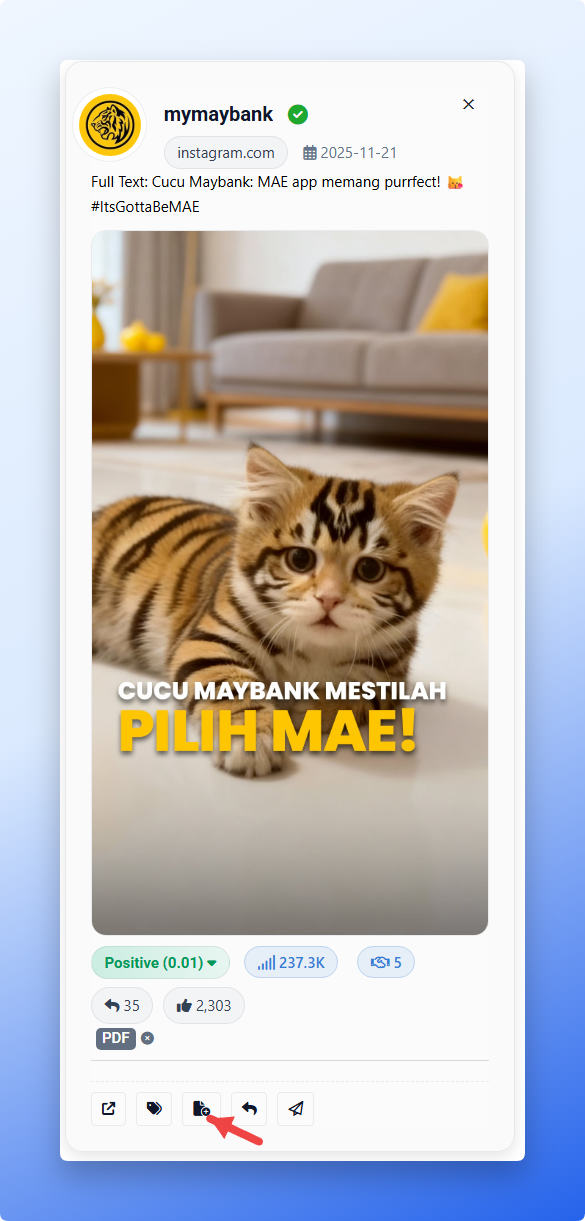
- Go to the Mentions tab.
- Click Add to Report on any mention you want included.
If you do not select mentions manually, Kommon Poll may choose relevant mentions automatically for supported report sections.
Step 4 - Choose An Export Type
Open the Download menu and choose:
- PDF Report
- Slides
- Mentions CSV (Simplified)
- Mentions CSV (Full Card Data)
- Excel Summary
Daily Slides is no longer a separate download menu option in the current export menu.
Step 5 - Choose A Saved Format For PDF Or Slides
PDF and Slides exports use a two-step flow:
- Choose the export type.
- Choose a saved PDF or PowerPoint format.
- Enter or confirm the report title when prompted.
- Generate the export.
If no matching format is available, create one under the Settings hub before exporting.
Report Branding vs Report Formats
Kommon Poll now separates project branding from reusable report formats.
| Area | What it controls |
|---|---|
| Search / project report branding | Logo and accent color for that saved search or project |
| PDF / Slide Formats | Which sections or slides appear, and the order they appear in |
Update search-specific branding from the saved search's Search Settings panel. Use Report branding to upload a logo and select an accent color for exports from that search.
Use the Settings hub for reusable PDF and slide structures:
- Sidebar -> Settings -> Report Settings -> PDF Formats
- Sidebar -> Settings -> Report Settings -> Slide Formats
Team Report Formats
PDF and slide formats are reusable team formats. Formats are visible to the whole team. Creators and team administrators can edit them.
Use clear format names such as:
Monthly management reportCampaign performance PDFExecutive slidesCompetitor benchmark deck
PDF Formats
Open:
Sidebar -> Settings -> Report Settings -> PDF Formats
PDF formats let you:
- Choose PDF sections.
- Reorder selected sections.
- Add all sections.
- Remove all optional sections.
- Restore the default order.
- Save the configuration as a reusable team PDF format.
Current PDF section options include:
- Numerical Summary
- Mention Count Chart
- Reach Chart
- Influence Chart
- Overall Polarity Chart
- Overall Subjectivity Chart
- Sentiment History Chart
- Source Distribution
- Key Authors
Slide Formats
Open:
Sidebar -> Settings -> Report Settings -> Slide Formats
Slide formats let you create and manage reusable PowerPoint structures. The slide picker includes categorized slides, required slides, and mention-card slide controls.
Required slides include:
- Cover
- Definitions
- End Slide
Common slide categories include:
| Category | Examples |
|---|---|
| Overview | Cover, Overview, Definitions, End Slide |
| Mention Analysis | Mention Count and History, Reach and Reach History, Influence and Influence History, Positive Mentions, Negative Mentions, Top Engagement Mentions, Official Mentions, Handpicked Mentions |
| Sentiment Analysis | Sentiment Summary, Sentiment History, Sentiment Count, Sentiment Distribution, Sentiment Trends by Source |
| Source Analysis | Platform Distribution, Mentions by Source Over Time |
| Content Analysis | Emoji Analysis, Word Cloud Analysis |
| Demographics | Business vs Individuals, Country of Mention, Nationalities, Languages, Population Pyramid, Job Rank, Income Distribution |
| Competitor Analysis | Competitor Analysis, Competitor Positive Mentions, Competitor Negative Mentions, Competitor Top Engagement Mentions |
Mention-card slides can use mention counts where supported, so you can control how many examples appear in sections such as Positive Mentions, Negative Mentions, Top Engagement Mentions, and competitor mention slides.
CSV Export Types
Kommon Poll now has two Mentions CSV modes.
| CSV type | Purpose |
|---|---|
| Mentions CSV (Simplified) | Quick export with platform, domain, author, date, title, text or highlight, sentiment, influence, and engagement metrics. |
| Mentions CSV (Full Card Data) | Detailed mention-card export with richer metadata, author details, media fields, CTA, priority, scam flags, geo/language/demographic data, entities, intents, subtopics, and raw JSON fields. |
Use Simplified CSV for quick analysis and stakeholder sharing. Use Full Card Data CSV when analysts need the complete mention-card metadata for deeper review.
Excel Summary
Excel Summary exports KPI and summary data for offline analysis. Use it when you need spreadsheet-friendly totals, comparisons, or metric review rather than full mention-card rows.
Quick Workflow
- Open a saved search.
- Apply filters.
- Add mentions to report, if needed.
- Confirm search report branding under Search Settings, if needed.
- Open Download.
- Choose PDF, Slides, CSV, or Excel.
- For PDF or Slides, choose a saved format before generating the export.