

Scheduling Automated Reports & Alerts
Automatically deliver structured reports and alerts through available notification channels.



Automatically deliver structured reports and alerts to stakeholders through the available notification channels.
Automated delivery is no longer only an email workflow. Kommon Poll notification settings now support concrete channel tabs for:
- Microsoft Teams
- Slack
Use reusable report formats for the structure of exported reports, then configure notification recipients and channels for delivery.
Select The Search To Automate
- Open the saved search or project you want to automate.
- Confirm the active team, filters, and reporting context.
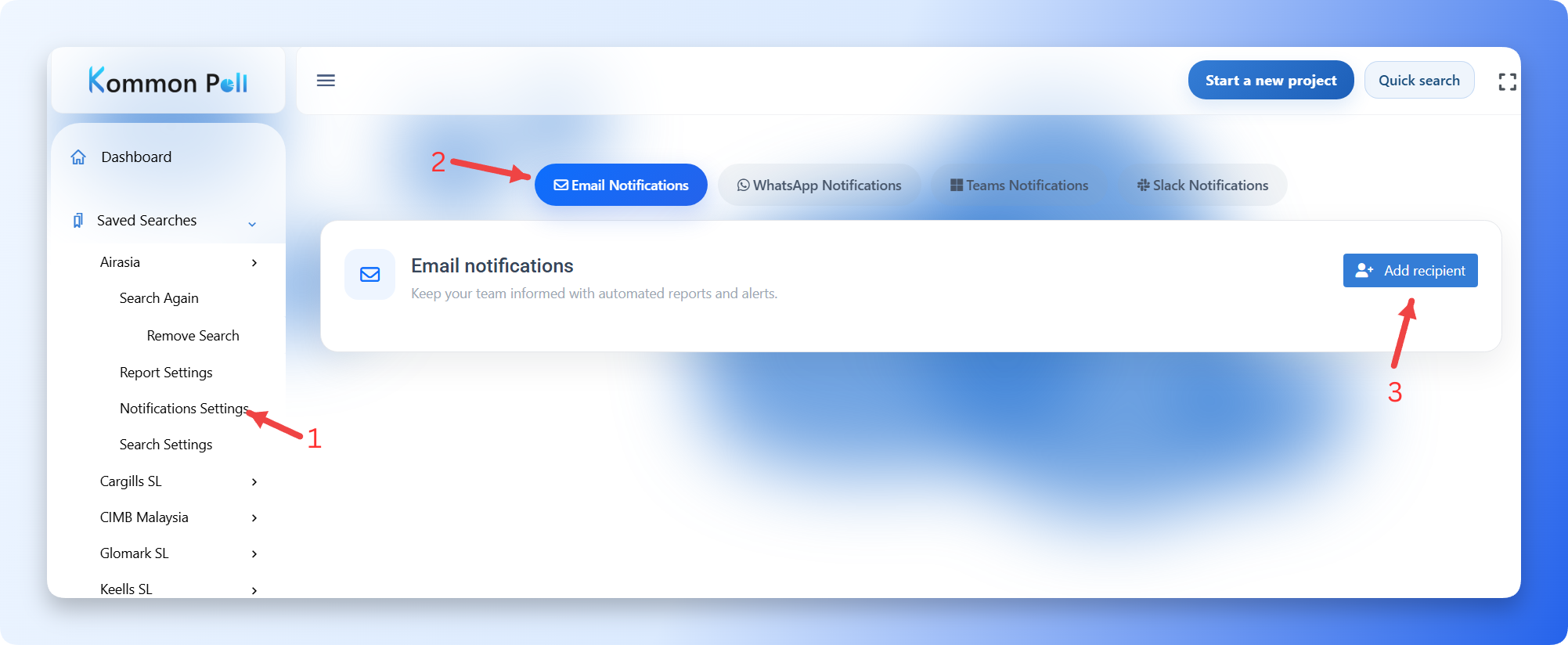
- Open notification settings for that search, or go to:
Sidebar -> Settings -> Notifications -> Notifications Center
Configure Report Formats
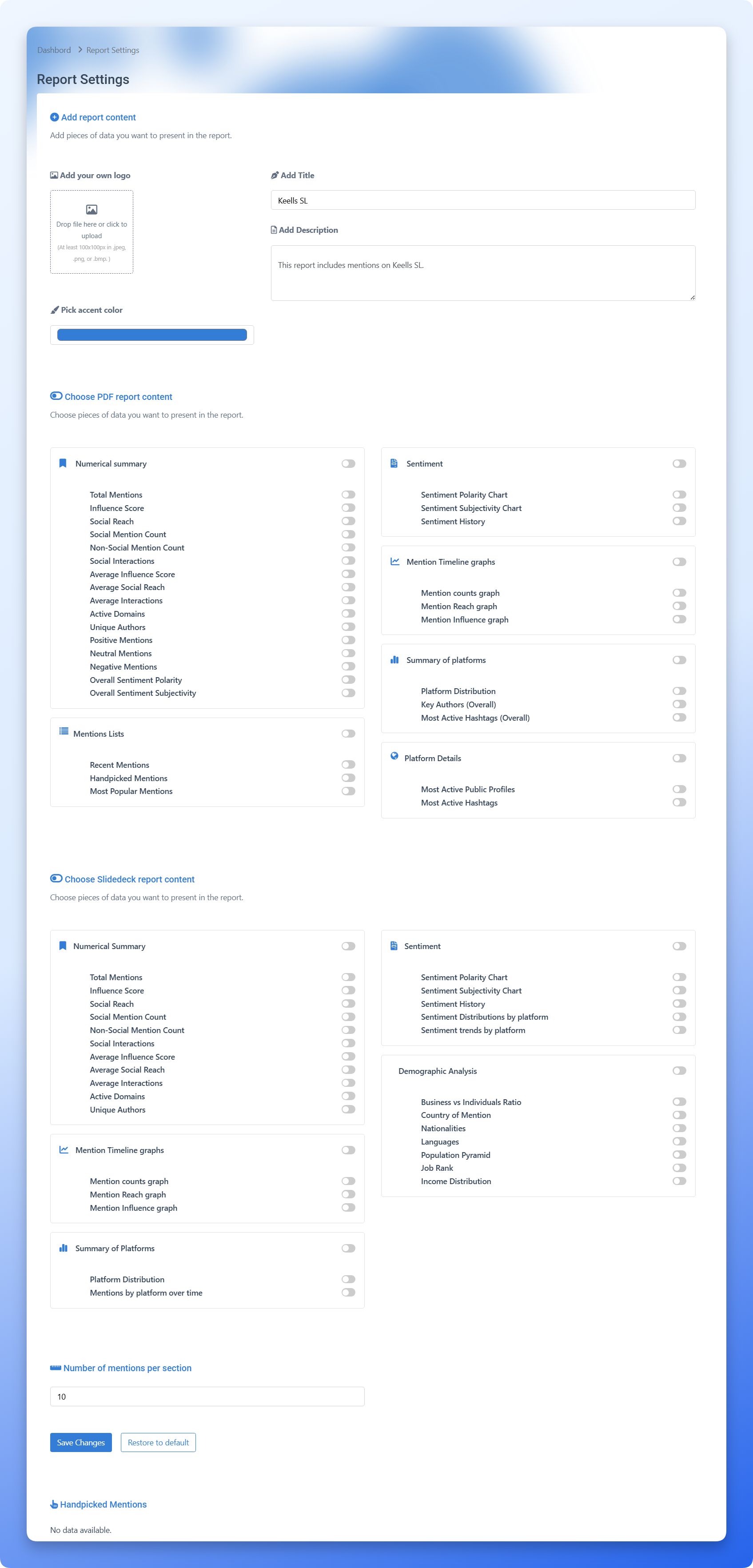
Reusable formats live in the Settings hub:
- Sidebar -> Settings -> Report Settings -> PDF Formats
- Sidebar -> Settings -> Report Settings -> Slide Formats
PDF and slide formats are team-level reusable formats. They control which sections or slides are included and the order they appear in. Formats are visible to the whole team, and creators or team administrators can edit them.
Branding is separate. Use the saved search's Search Settings panel to set the report logo and accent color for that search.
Email Notifications
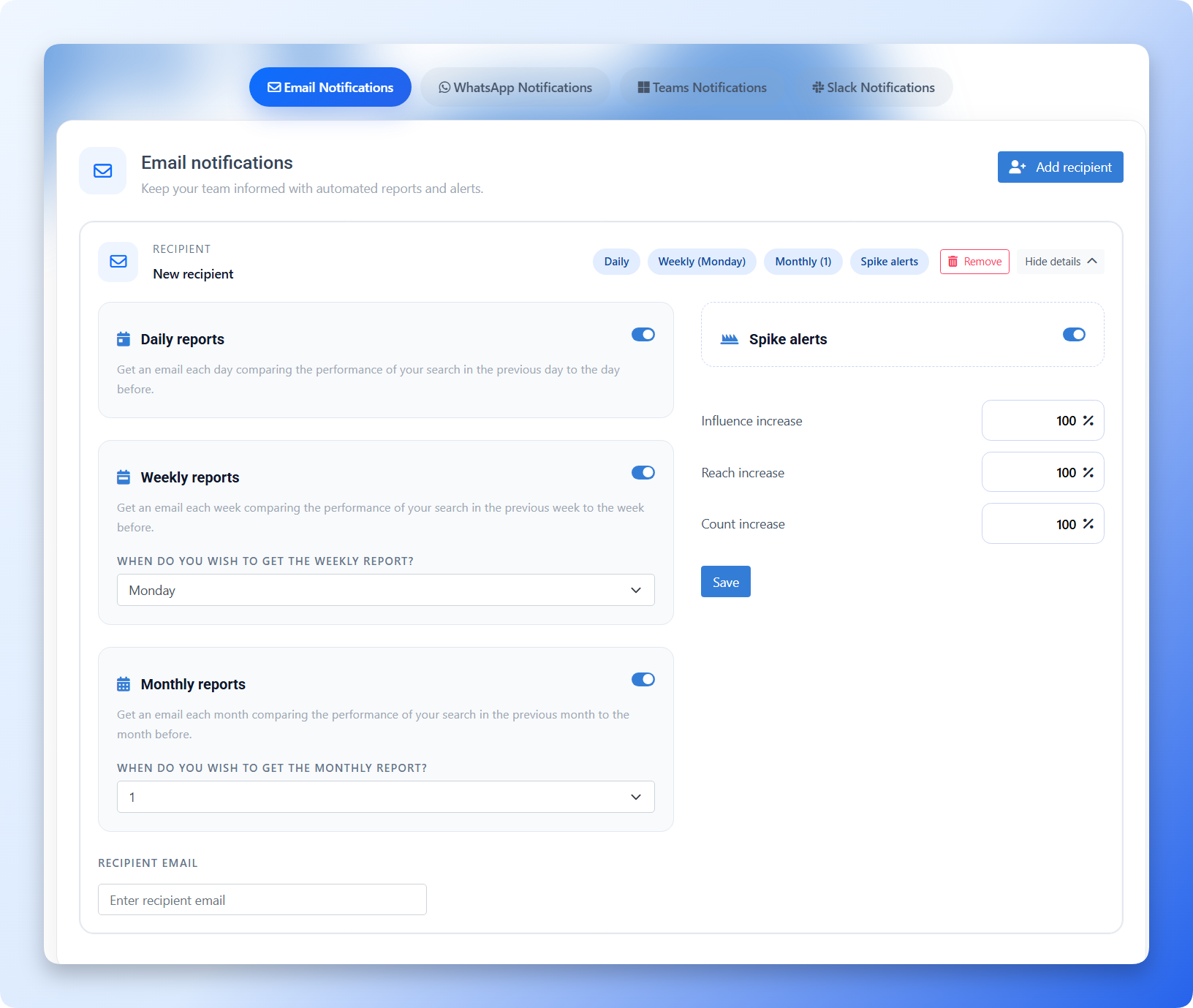
Use the Email Notifications tab to:
- Add one or more email recipients.
- Send scheduled summaries.
- Configure alert thresholds where available.
Typical schedule options include daily, weekly, and monthly report delivery.
WhatsApp Notifications
Use the WhatsApp Notifications tab to:
- Select one or more linked WhatsApp numbers.
- Enable daily WhatsApp notifications.
- Enable weekly WhatsApp notifications and choose the weekday.
- Enable mention alerts based on sentiment range.
- Choose whether mention alerts apply to all mentions, comments, or posts.
Linked numbers are managed under:
Sidebar -> Settings -> Notifications -> WhatsApp Settings
The current WhatsApp settings UI supports up to three linked numbers.
Microsoft Teams Notifications
Use the Teams Notifications tab to:
- Add a Teams channel email address.
- Enable mention alerts.
- Set the sentiment alert range.
- Choose all mentions, comments, or posts.
Teams notification controls may depend on plan permissions.
Slack Notifications
Use the Slack Notifications tab to:
- Enable daily Slack summaries.
- Enable weekly Slack summaries and choose the weekday.
- Enable mention alerts.
- Set the sentiment alert range.
- Choose all mentions, comments, or posts.
Slack workspace connection is managed under:
Sidebar -> Settings -> Notifications -> Slack Settings
Slack notification controls may depend on plan permissions.
Spike And Sentiment Alerts
Alerts help notify stakeholders when activity or sentiment changes significantly. Depending on the channel and search, alert controls can include:
- Mention alerts
- Sentiment range thresholds
- Daily or weekly summaries
- Metric spike thresholds, where supported
Use thresholds carefully so alerts stay actionable.
Quick Workflow
- Open the saved search or project.
- Confirm or create a reusable PDF or slide format under Settings.
- Confirm search report branding under Search Settings, if needed.
- Open Sidebar -> Settings -> Notifications -> Notifications Center or the search's notification settings.
- Configure Email, WhatsApp, Teams, or Slack.
- Save the notification settings.